Setup and data-logging instructions for the AIM Solo 2 DL GPS Lap Timer / digital logger used with the Can-Am Maverick X3. Covers installing RaceStudio 3 software, recording a data log on the vehicle, retrieving the log over WiFi, and sending the log file to EVP for analysis.
RaceStudio 3 Install
- Navigate to https://www.aim-sportline.com/en/sw-fw-download.htm
- Select Download for RaceStudio 3
- Select the latest version. (Download RaceStudio 3 Release. Current release AIM strongly recommends you to install. RaceStudio3 3.70.46 (September 5th, 2024). Previous releases: RaceStudio3 3.70.44 (August 28th, 2024); RaceStudio3 3.70.30 (July 30th, 2024).)
- Navigate to your pcs downloads folder
- Double click or right click and select open to run install
- Select Yes to allow install to run (User Account Control: Do you want to allow this app to make changes to your device? RaceStudio 3. Verified publisher: AIM TECH srl. File origin: Downloaded from the Internet.)
- Select Next when install wizard appears (Welcome to the RaceStudio 3 Setup Wizard. The Setup Wizard will install RaceStudio 3 on your computer. Click "Next" to continue or "Cancel" to exit the Setup Wizard.)
- Select Next to leave default install folder location (Select Installation Folder. This is the folder where RaceStudio 3 will be installed. Folder: C:\AIM_SPORT\RaceStudio3\)
- Select Radial to accept terms and select Install to begin install process. (End-User License Agreement. Please read the following license agreement carefully. GENERAL TERMS AND CONDITIONS OF USE. Select "I accept the terms in the License Agreement".)
- Wait for install to complete (Installing RaceStudio 3. Please wait while the Setup Wizard installs RaceStudio 3. This may take several minutes. Status: Extracting files from archive)
- Select Finish to close and launch RaceStudio3 (Completing the RaceStudio 3 Setup Wizard. Click the "Finish" button to exit the Setup Wizard. Launch RaceStudio 3 [checkbox checked].)
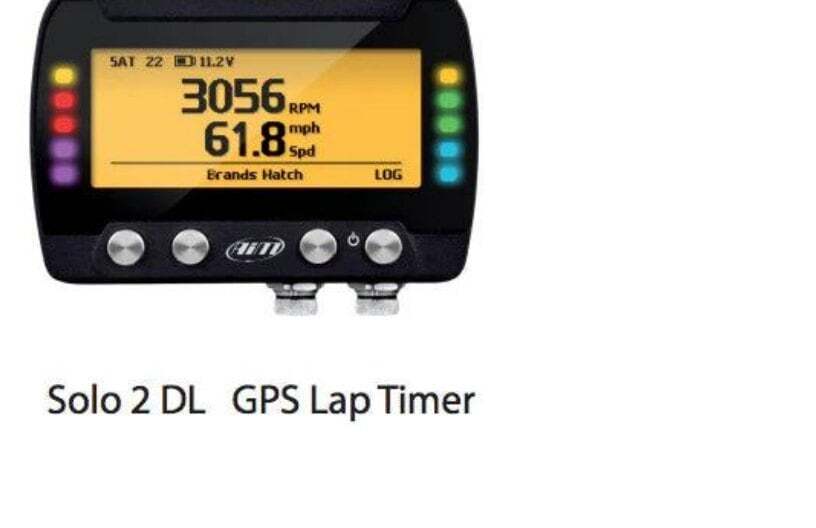
Data Logs Steps
- Make sure AIM is fully charged (50% or higher)
- Connect AIM to diagnostic port
- Start vehicle (aim will automatically turn on)
- Wait for track search to complete
- Or skip by pressing the farthest right button on the AIM twice in session to exit
- Verify log is showing in bottom right corner
- Make a pull/pass/run
- Shut vehicle off (AIM will stay on for 10 minutes)
- Follow Data Log Retrieval steps to download and send data log to be analyzed
NoteThank you for choosing Evolution Powersports products. If you require further assistance, please call our Tech Support @ (715) 247-3862
NoteNote: This product is exempt from the emission standards and related requirements of 40 C.F.R. § 1051 as provided by 40 C.F.R. § 1051.620, and California law (e.g., vehicle code§§ 27156 and 38391). This product is sold only for use in connection with EPA certified, purpose-built, nonroad vehicles used solely for closed course, nonroad competition/racing and not used for any recreational purpose or on public highways or right of ways maintained by and open to the public. This product is sold only in connection with machines that do not run under state and/or federal noise or emission standards/regulations. Purchasers who/that purchase this product represent and warrant that the product is purchased only in connection with EPA -certified, emission-regulations-exempt and noise-regulations-exempt competition/racing vehicles as interpreted under applicable state and/or federal law. Questions: Call Evolution Powersports at (715) 247-3862.
Data Log Retrieval Steps
- Open Race Studio 3 (RaceStudio 3)
- Click on WiFi icon at top right-hand corner (WiFi and Ethernet Settings... AIM-SOLO2DL-513474-EVP)
- Click connect on your AIM (AIM-SOLO2DL-513474-EVP, Connect)
- Select Configuration at the top left-hand corner. (RaceStudio3 (64 bit) 3.69.00)
- Select your AIM from device list below. (All Configurations; Manual Collections; Connected Devices: EVP)
- Select Data Download from top section (EVP (WiFi); tabs: Live Measures, Data Download, [Properties], Settings, Tracks, Predictive Reference Lap, Counters, Logo, Firmware; buttons: Data Download, Unhide Downloaded, Delete, Refresh List)
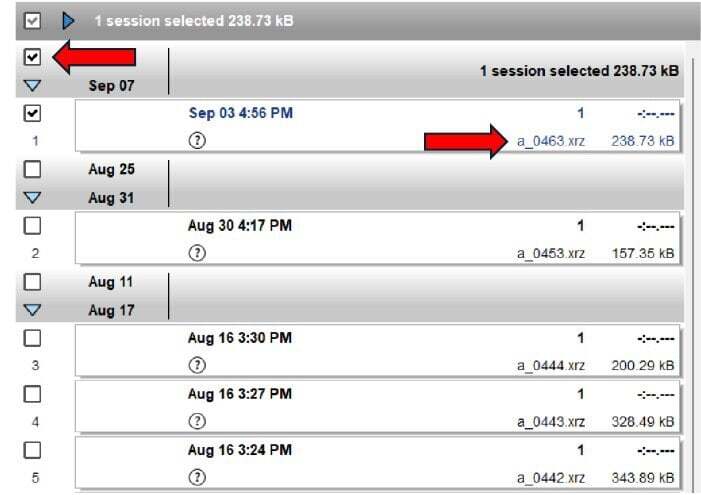
- Select the check box next to the data log you'd like to download and send. (e.g. Sep 03 4:56 PM, session a_0463.xrz, 238.73 kB)
- Select Data Download Note the Number on the file your download this example is a_0463 (this will be needed later) (file a_0463.xrz, 238.73 kB)
- Add Racer Name, Number, and Comments.
- These are all optional but helps keep files organized.
- Comments can be used to describe issue and what tune machine has.
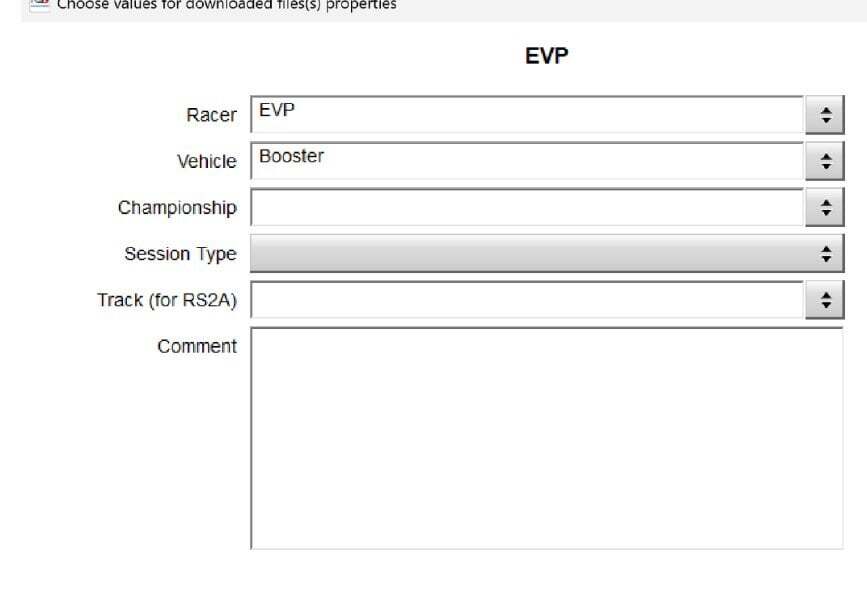
- Once Info is filled out select OK (Choose values for downloaded files(s) properties — EVP. Fields: Racer = EVP; Vehicle = Booster; Championship; Session Type; Track (for RS2A); Comment. Select OK.)

File selection option 1
- Navigate to the AIM install folder, default is C:\AIM_SPORT\RaceStudio3\user\data
- Select the date folder for data log you want to send. (Local Disk (C:) > AIM_SPORT > RaceStudio3 > user > data)
- In the date folder select the Racers Name you entered (e.g. data > 2024-09-03 > EVP)
- In the Racers folder select the drk and Aim XRK file type for the data log number that you want to send, in this example it's a_0463. (AIM_SPORT > RaceStudio3 > user > data > 2024-09-03 > EVP; select EVP_Booster_a_0463.drk [DRK File] and EVP_Booster_a_0463 [AiM XRK logged data...])
- Copy these with either Ctrl+c or right click and select copy.
- Connect back to WiFi to send email.
- Attached both of these to a support ticket
File selection option 2 "if RaceStudio2 Analysis is installed"
- Select RaceStudio2 (Launch RaceStudio2 Analysis)
- Right click on the data log & select open test folder (Test name list, e.g. EVP_Booster_a_0463; right-click menu: Open test, Test properties, Remove test, Export test, e-Mail test, Open test folder)
- Select the drk and Aim XRK file type for the data log number that you want to send, in this example it's a_0463. (AIM_SPORT > RaceStudio3 > user > data > 2024-09-03 > EVP; select EVP_Booster_a_0463.drk [DRK File] and EVP_Booster_a_0463 [AiM XRK logged data...])
- Copy these with either Ctrl+c or right click and select copy.
- Connect back to WiFi to send email.
- Attached both of these to a support ticket
NoteThank you for choosing Evolution Powersports products. If you require further assistance, please call our Tech Support @ (715) 247-3862
NoteNote: This product is exempt from the emission standards and related requirements of 40 C.F.R. § 1051 as provided by 40 C.F.R. § 1051.620, and California law (e.g., vehicle code§§ 27156 and 38391). This product is sold only for use in connection with EPA certified, purpose-built, nonroad vehicles used solely for closed course, nonroad competition/racing and not used for any recreational purpose or on public highways or right of ways maintained by and open to the public. This product is sold only in connection with machines that do not run under state and/or federal noise or emission standards/regulations. Purchasers who/that purchase this product represent and warrant that the product is purchased only in connection with EPA -certified, emission-regulations-exempt and noise-regulations-exempt competition/racing vehicles as interpreted under applicable state and/or federal law. Questions: Call Evolution Powersports at (715) 247-3862.