
This guide explains how to set up and use the CodeShooter app on an iPhone (iOS) to flash and tune a vehicle's ECU, read and clear DTCs, view live data logging, run launch control, and adjust device settings. It also covers light/LED indicator functionality and important usage notes.
Getting Started
- Open CodeShooter box which will contain: a. A CodeShooter Device; b. Model specific diagnostic/flash cable.
- Download App. Search "CodeShooter" in the App Store.
- Turn on your device's Bluetooth connection. a. If a stable WiFi network is available, connect the phone to the WiFi. b. WiFi data connectivity is the fastest and most reliable when transferring files from our server. A slow WiFi connection or poor cell service (3G or lower) may cause download errors or downloads unavailable all together. c. If the data speed or cell service is not sufficient, the app communication will have errors and will not function properly.
Selecting and Connecting the Cable
- Select CodeShooter vehicle specific RJ45 to OEM diagnostic plug cable. a. For Can-Am: CS-BRP-1 is for Maverick X3 and any vehicle with an electronic DESS key; CS-BRP-2 is for Can-Am vehicles that use a physical key that gets inserted and turned on to start the vehicle. b. For Polaris there is only one cable: CS-POL-1.
- Plug RJ45 cable into CodeShooter & into vehicle's diagnostic port. a. Can-Am X3 2017-2018: Located under glove compartment cover. b. Can-Am X3 2019+: Located near fuse panel in center of dash. c. Polaris XP 1000/Turbo 2016-2020: Located under the hood in front by the firewall. d. Polaris Pro XP: Located under steering column.
- Insert Key and turn ignition on (vehicle not running) but lights on the dash illuminated.
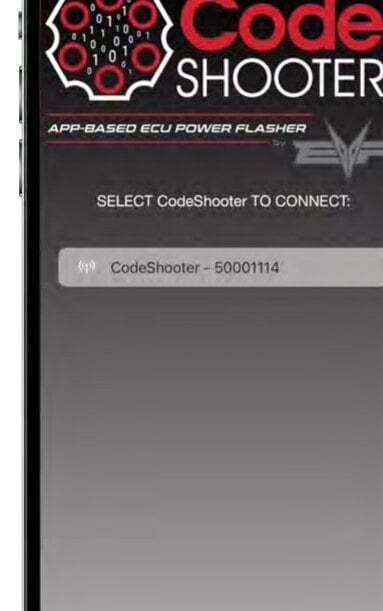
- Open the CodeShooter app and select the CodeShooter™ serial number from the available devices.
- Review and accept Term and Conditions and Privacy Policy, if prompted.
- Once you enter the app, the app may automatically do a firmware update. a. DO NOT DISTURB firmware update process. b. Leave CodeShooter™ plugged in to the vehicle. Do not turn ignition key off.
- Once firmware has been completed the CodeShooter will lose connection and you will be brought back to app main page.
- Select CodeShooter Serial Number from the available devices like in Step 7.
ImportantIMPORTANT – PLEASE NOTE: Turn off all high-draw devices or accessories during the flashing procedure. Make sure battery has a sufficient charge ABOVE 11.3 volts. If less than 11.3 volts, plug into the charger.
NoteIf less than 11.3 the ECU Flash may not begin flashing. If it does start to flash, it can fail, and subsequent recovery attempts will fail as well.
Connecting to the ECU and Downloading the Tune File
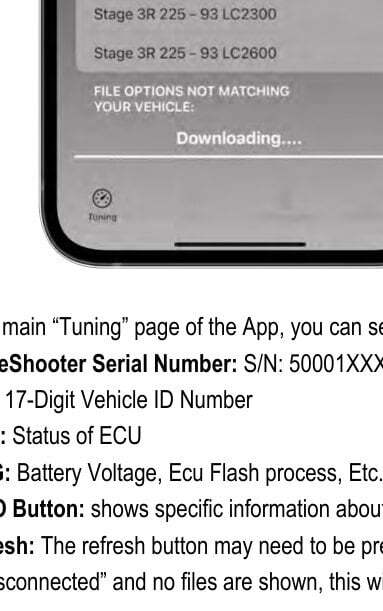
- The CodeShooter will automatically connect to and analyze the vehicles ECU specific ID. VIN number etc. and transmit the information to our server. The server determines the compatible software that is available and transmits this data back to the app. At this point the different tuning files are shown and can be downloaded.
- On the main "Tuning" page of the App, you can see: a. CodeShooter Serial Number: S/N: 50001XXX; b. VIN: 17-Digit Vehicle ID Number; c. ECU: Status of ECU; d. MSG: Battery Voltage, Ecu Flash process, Etc.; e. INFO Button: shows specific information about vehicle's ECU info such as VIN number, software ID, hardware ID, etc.; f. Refresh: The refresh button may need to be pressed a few times to communicate with the ECU. If the ECU status is "disconnected" and no files are shown, this will manually refresh the communication between the ECU and App.
- Choose the tune that corresponds with your vehicle's installed hardware and fuel octane rating. a. There may be files that are "greyed" out that you can see but not download. These files are available to download once the specific hardware is purchased. Please contact us to purchase the required hardware and to get the software unlocked.
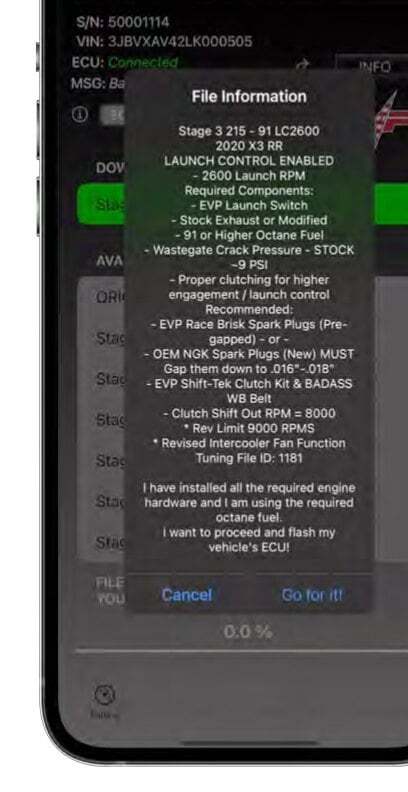
- When you select the file you want to download, the "File Information" page will appear before you can download the file. a. It is IMPORTANT to read the "File Information" which comes up when you select a specific file prior to downloading it from our server. b. The "File Information" explains the specific hardware that must be installed on the vehicle in order for the software to work properly. It will also explain any specific changes that need to be made to the vehicle, octane rating, etc. c. Once you have verified the hardware on the vehicle matches the software that you are attempting to download, press "Go for it!" to download the file. d. If you have selected the incorrect file, select "Cancel".
- The tuning file will be downloaded from our server, uploaded to the CodeShooter device and the CodeShooter will automatically start to flash the vehicles ECU.
Flashing the ECU
- There will be different messages that show up on the MSG area explaining the different steps of the flash procedure and when it is completed, it will indicate the flashing is DONE. a. Once flashing begins, the CodeShooter LED will start blinking Yellow/Blue indicating it is flashing the ECU. At this point the phone/app is only receiving data from the CodeShooter. b. The phone/App can lose connection with the CodeShooter and the CodeShooter will work independently. After about 3 minutes and when the flash is complete, the LED will blink 90% Green/10% White and this indicates the flash was installed successfully. c. If for some reason the flash gets interrupted (key turned off or CodeShooter cable gets disconnected) the CodeShooter will automatically attempt to recover and begin the flash process again. CodeShooter LED will blink Pink/Yellow during recovery. Do not interrupt this process. You may need to disconnect the CodeShooter from the vehicles diagnostic port to recover the flash. Follow the message prompts from the CodeShooter App. The message may tell you to do a power cycle of the CodeShooter Device. This can be done by turning off the ignition or disconnecting the CodeShooter from the vehicle all together then reconnect it. The CodeShooter will automatically try and recover the ECU but if the battery voltage is low, the CodeShooter may not be able to recover it. Install a battery charger on the battery if the battery voltage is too low. DO NOT connect the CodeShooter to ANY OTHER VEHICLE until the ECU has been restored successfully. If the flash fails after all recovery attempts, contact our Tech Support for further guidance.
- On Polaris Vehicles: After flash is successfully installed, Key-Off ignition, wait 5 seconds and key back on prior to starting the vehicle. This will reset the EPS module.
NoteDO NOT UNPLUG THE CODESHOOTER OR SWITCH KEY OFF DURING THE FLASHING PROCEDURE
Dash Flash (If Purchased)
- Can Am Dash Flash – If you have purchased our Dash Flash program, a dash icon will appear which allows you to select the "ECU or DASH" by sliding this icon left or right. This will toggle between communication between the ECU or DASH. When you select "DASH" CodeShooter will scan this controller and allow you to select the model specific flash file to install into the DASH. a. Select the file you want to download, the "File Information" page will appear before you can download the file. b. It is IMPORTANT to read the "File Information" which comes up when you select a specific tune file prior to downloading it from our server. c. The "File Information" explains the specific hardware that must be installed on the vehicle in order for the software to work properly. It will also explain any specific changes that need to be made to the vehicle, octane rating, etc. d. Once you have verified the hardware on the vehicle matches the software that you are attempting to download, press "Go for it!" to download the file. e. If you have selected the incorrect file, select "Cancel". f. The file will be downloaded from our server and automatically flashed into the DASH controller.
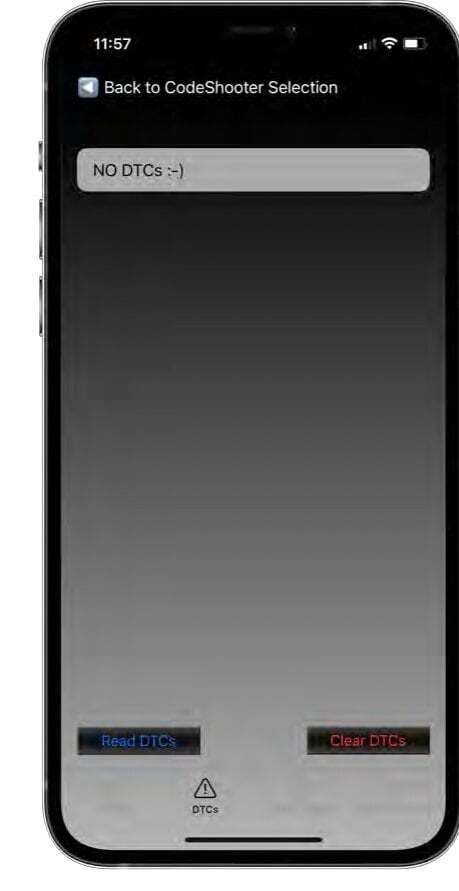
Reading and Clearing DTCs
- When you select the DTC icon on the bottom of the App, you can read and clear DTC's. Use the "Read DTCs" and "Clear DTCs" buttons.
Data Logging / Live Engine Data
- When you select the Data Logging icon to the right of DTC's you can view the engine data in real time. Values shown include ENG RPM, FOL, TPS, CLT, IAT, BARO, MAP, BOOST, IGN ADV, INJ PW, SPEED, BATT, EVP-LBDA, ENG TEMP, ENG LOAD, INJ DUR-1, INJ DUR-2, IGN 1, IGN 2, BATT VOLT, etc.
Device Settings
- The Device-Settings Icon to the far right has a few additional options. a. You can change the brightness LED light by sliding the dot L or R. b. There is an explanation of the different LED light behaviors. c. Need Help Button: Has our contact information. d. Available FW: Has the serial number of the firmware that is on our server. e. FW-Version: This is the firmware version on your specific CodeShooter. f. If for some reason, the firmware available and version don't match, you can press "Reflash Firmware" to manually install the latest firmware.
NoteRED / WHITE / BLUE FAST BLINK: Device is powered up and doing self test.
NoteGREEN 100%: NON-flashing action = Device has READ ECU Data, response says it can be downloaded to the disconnected to NON bluetooth mode.
NoteGREEN 100%: Flashing action = Device has successfully programmed ECU. Diagnose need can be disconnected in NON bluetooth mode.
NoteWHITE 100%: Device is power up ready but WiFi connection no computer operation in bluetooth app.
Adjustable Launch Control
- To operate launch control, the following conditions must be met: The vehicle must be stationary; The launch switch must be pressed to the up position; Belt engagement must be above 2300 RPM (preferably 2500 RPM); The brake must be pressed – it is best to hold the brake hard so if the belt engages, the vehicle is not creeping forward. (Taillights must be working. If taillights are not working, Launch Control will not work.); The gas pedal must be pressed 100%.
- When all criteria are met in step 1, this will enable the vehicle to enter "Launch Mode". Launch Mode allows you to build boost prior to launch. Boost pressure will climb during staging within 3 seconds. Holding the vehicle in launch mode longer than about 3 seconds will not make it build more boost. After that, boost will plateau and hold. When the brake is released, the vehicle will come out of launch mode and exit normally.
- Launch Mode will enable the vehicle to accelerate MUCH faster than a non-launch equipped vehicle – be prepared. USE AT YOUR OWN RISK!
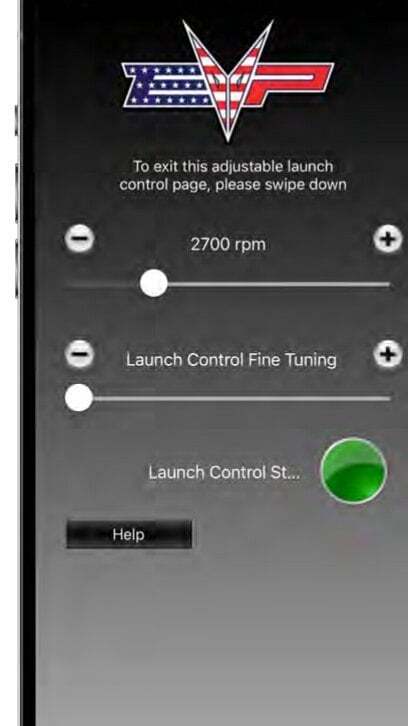
- "Launch RPM" is self-explanatory. Increase or decrease the RPM to change the internal ECU logic to set the RPM cut higher or lower. Use the "+" or "-" buttons to increase or decrease this value or use the slider button left or right to change this from 2200-4200rpm.
- The "Launch Control Fine Tuning" +/- should not need to be changed on 95% of the applications. The only time this should be changed is if you have a relatively high launch RPM (above 3500 RPMS) and you are having issues controlling the launch RPM's. You may need to lower this setting to help prevent the stall that RPM from being exceeded. Another reason for changing this is on bigger turbo systems with a high launch RPM. You may need to raise or lower this setting to achieve the desired boost pressure / launch control characteristics.
- The "Launch Control Status" button will change to yellow when transmitting the data to the ECU. When it is green, the ECU is ready / set.
NoteHotter temperatures and higher elevation may degrade the amount of boost that can be built with a stock clutch and the 2300 rpm clutch engagement. An advantage to CodeShooter is the adjustable rpm and boost options in the application. NOTE: The adjustable RPM settings in the app MUST match your clutch engagement RPM. If you set the rpm too high than the actual clutch engagement RPM, damage to the clutch and CVT belt will occur. USE AT YOUR OWN RISK!
NoteIt is very important not to hold the vehicle in staging for long periods of time as can be hard on the engines valvetrain. Use it sparingly. EVP bears no responsibility any damage to the engine and/or drivetrain as the result of using this product. USE AT YOUR OWN RISK!
NoteLaunch control will cause more wear and tear on your primary clutch and belt. Expect this. Although the factory primary clutch is very durable, it is possible to break the clutch with continuous hard launches. STM and other Billet clutches are more durable for racing and/or launch control equipped vehicles. USE AT YOUR OWN RISK!
Support and Important Notes
- If there are any technical questions, please submit a support ticket.
ImportantIMPORTANT - PLEASE NOTE: CodeShooter must be kept in a waterproof area. Exposure to water will damage the electronic components.
NoteCodeShooter should remain unplugged from the vehicle when not in use. If it is left plugged into the diagnostic port without the vehicle running, the constant LED light will drain the vehicles battery within 24-36 hours. We are working on a low power mode so it can be left connected, but this is not implemented now.
NoteWiFi data connectivity is fastest and most reliable when transferring files from our server. Slow WiFi or poor cell service (3G) may cause download errors or downloads unavailable all together. If the data speed or cell service is not sufficient, the app communication will have errors and will not function properly.
Light Functionality (LED Key)
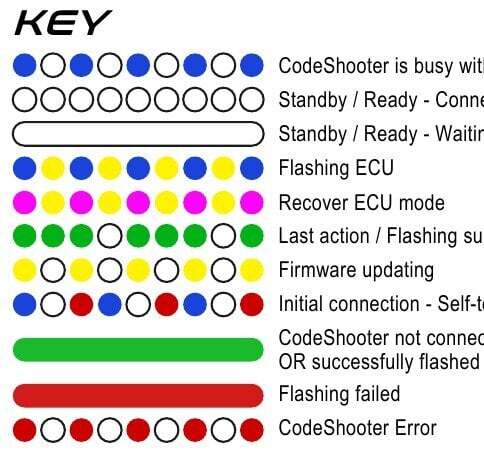
- The CodeShooter device has a single LED light on the unit. Refer to the following key to interpret its color patterns:
- Blue blinking pattern: CodeShooter is busy with the current download.
- All off (white outline): Standby / Ready - Connected to app.
- Solid off / blank: Standby / Ready - Waiting for connection to App & vehicle ECU.
- Blue/Yellow alternating: Flashing ECU.
- Pink/Yellow alternating: Recover ECU mode.
- Green blinking pattern: Last action / Flashing successful.
- Yellow blinking pattern: Firmware updating.
- Blue/Red alternating: Initial connection - Self-test during power-up.
- Solid Green: CodeShooter not connected to App - CodeShooter has successfully read ECU-Data OR successfully flashed ECU.
- Solid Red: Flashing failed.
- Red blinking pattern: CodeShooter Error.