
This document is used as a reference by customers and support personnel for instructions on data logging with the CodeShooter device and application (iOS). It walks through starting a data log, recording and saving data, transferring the log to iOS, naming and sending it, and locating the saved file.
Start Data Log
- First, ensure the CodeShooter is correctly connected to the vehicle diagnostic port, and that you have selected the special number on the app that corresponds to the number on your CodeShooter.
- Next, at the bottom of the page navigate to the Data Logging tab, see the picture circled in red. This page should appear with real-time data in the labelled rows.
- Press the RECORD button to begin recording data.
Note**No rows: if the rows are not showing and gauges or a line graph are displayed, then press the Mode button in the upper right corner until the rows are present.
NoteIf metric units are preferred select Metric at the top of the page at this time.
NoteThe RECORD button should appear on the page, see the picture circled in red.
Note**RECORD button: if button is not present then momentarily navigate to a different tab. Upon returning to this page the button should now load.
NoteButton displays REC !, then there is already a saved data log on the CodeShooter, press the Delete button or Delete DR. Wait a minute and the RECORD button will appear. If the CodeShooter reboots at this point please restart at the top.
NoteButton displays BUSY then an operation is processing, please wait for the button to change.
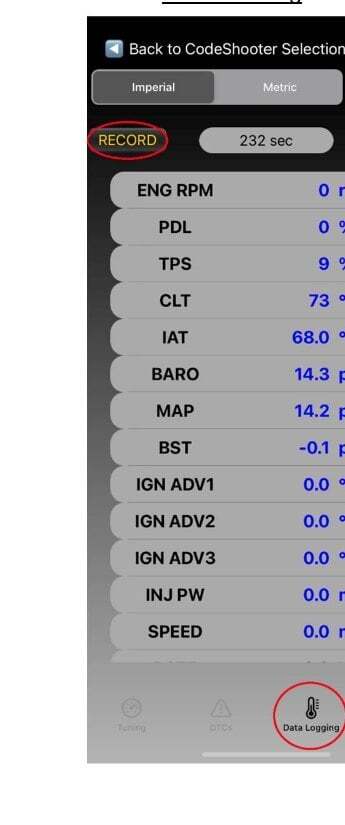 Data Logging tab with real-time data rows; RECORD button at bottom
Data Recording Active
- This window will appear once the data recording has been activated. Press the blue OK button and the data log will now store all values onto the CodeShooter.
- To stop the current data log press the red REC ! button and this will stop the active recording at that time. The button will change to REC ! and a window will pop up.
NoteDuring active recording this REC ! button will fade in and out. Also note the second counter to the right will increase. This indicates the total record time in the current data log.
Note**Window didn't pop up: pressing the yellow REC ! button will open the window with a couple options.
Note**Once the red REC ! button is pressed the data log cannot be continued, so be certain you've got all the desired vehicle data.
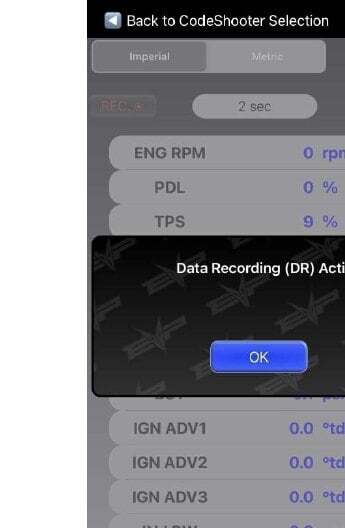 Data Recording (DR) Active popup with blue OK button
Saving Data
- To save the data log press the green Save DR button. This will bring up a new popup window.
- To remove the data log from the CodeShooter press the Delete DR button. This completely erases the data log and takes a minute to perform.
Note**Continue Data Log: the data log can't be continued from this point. Only saved or deleted. The Dismiss button simply removes the popup window.
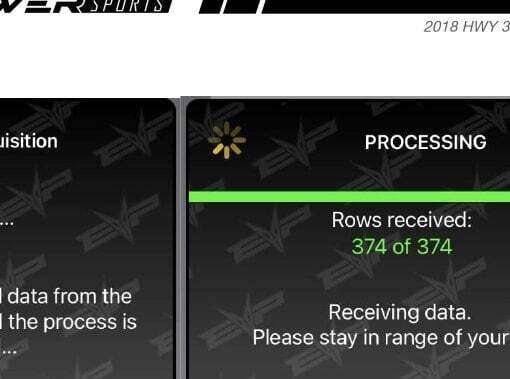 Processing window showing rows received status bar
Data Acquisition
- The next window doesn't require any action, it shows the status of the data log transferring from the CodeShooter to the iOS device. Once complete a new window will appear.
Note**Pressing the CANCEL button at this time isn't recommended as it can lead to transfer errors and may require a power cycle and app restart.
Note**If the green status bar doesn't promptly begin filling then the app must be reset. Fully close the app and restart it. Once you have selected your CodeShooter serial number and navigated to the Data Logging tab, the yellow REC ! button should appear. Pressing the button should allow you to continue saving the same data log from part 3. Saving Data.
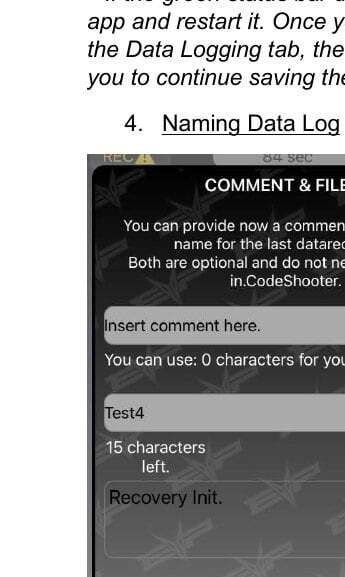 Comment & File Name entry screen with SEND and CANCEL buttons
Naming Data Log
- Nothing is required to be filled in. Simply pressing the green SEND button will save the file to the iOS device.
- The first text box is a comment that will be found inside the saved file. The second text box is a custom name you give the file.
- Type a comment in the first text box and a custom name in the second text box.
Note**Close the Keyboard: to close the keyboard on the iOS device press anywhere on this window that isn't a text box.
Note**Pressing the CANCEL button at this time isn't recommended as it will not save the file and will not perform any data log cleanup.
Note**Recovery init. Text can be ignored.
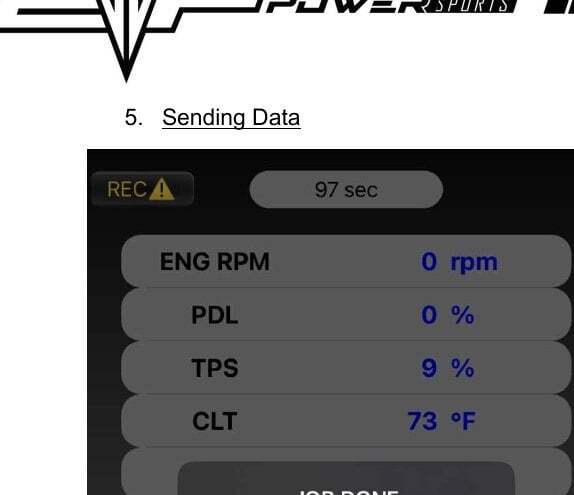 JOB DONE - CSV generated and sent confirmation
Sending Data
- After pressing SEND the window will disappear for a couple moments. Please wait for the JOB DONE message to appear as shown in the picture.
- After pressing Got It!, the CodeShooter will perform a cleanup operation, and remove the recorded data log from the memory, this can take a minute. Once complete the WAITING message will disappear and the RECORD button will appear. Another data log process can be repeated at this time.
Note**The data log can be sent to the EVP server at this time, but the function must be enabled first by submitting a support ticket.
Note**The CodeShooter may reboot during the cleanup process, and the app will return to the CodeShooter selection screen. However, the data log has already been saved to the iOS device.
Note**During this process it is a good time to navigate to the file saved on your phone and email it to the necessary parties
Finding Data Log
- The iOS stores the data log in the Files app. It can be found by performing a search for files.
- In the Files app select the Browse tab at the bottom.
- Select the EVP-CS folder.
- Here is the saved data log. It can be viewed by clicking on the file. Or it can be sent by long pressing on the file and selecting share in the popup menu. From here it can be emailed to the necessary parties.
Note**Search bar can be found by navigating to the home screen and swiping down from the middle of the screen.
NoteThis sometimes needs to be pressed multiple times. Once on this screen press On My iPhone.
NoteThere should be a folder called EVP-CS. This is where the data log is saved.
Note**Note app updates may erase this file and data. It is important to backup any important data logs in a separate location.
Note**The will have the name given during the saving process and time stamped.
NoteA snip of the data log when viewed with the iOS device. Note the saved data log is filled with values. Many 3rd party CSV viewers are available to see graphs of this data.