
What's in the Box
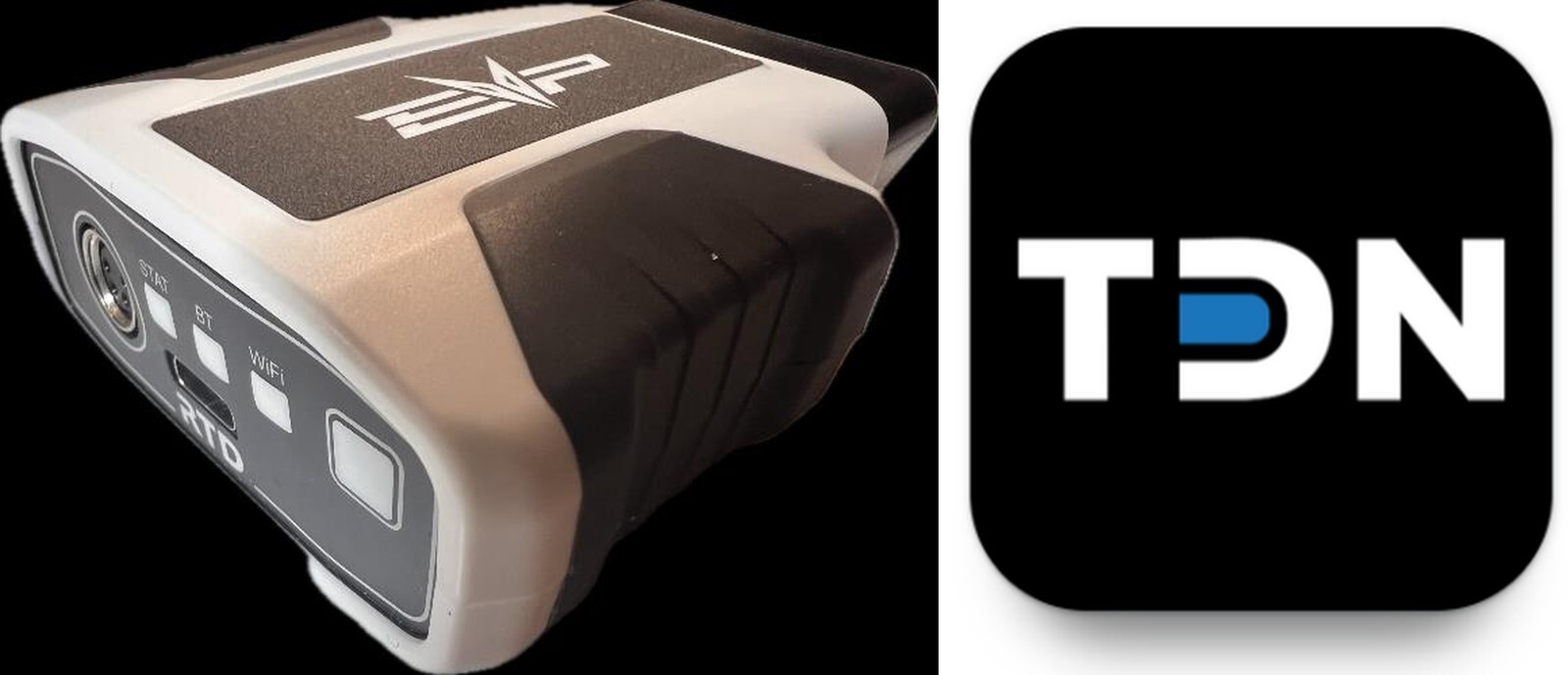
Plug RTD into OBD-II Port
As the CF Moto tends to have a full OBD-II port you will not need an adapter cable to flash your vehicle with an RTD. However, if you want to drive with the RTD connected for data logging purposes etc. then an OBD-II extension cable is recommended.
OBD-II locations
UForce 1000: under the front hood.
HPT Account
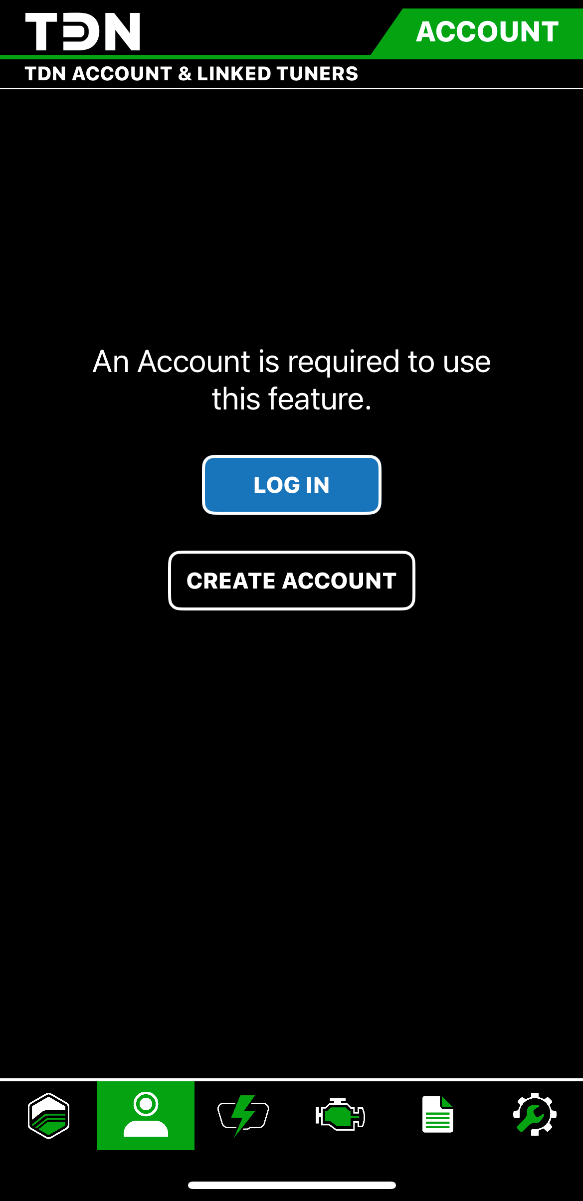
An HPT account will be necessary for flashing. First navigate to the Account page. If you have an HPT account already, then press LOG IN and skip ahead.
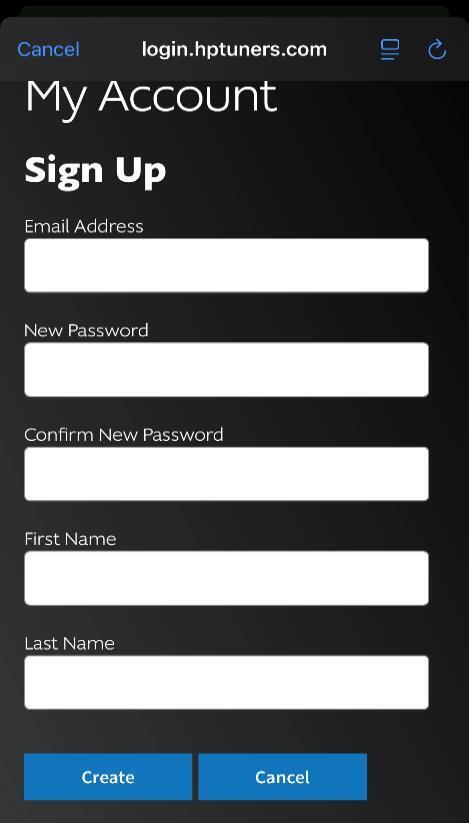
If you don’t have an existing HPT account press the press the CREATE ACCOUNT button. Fill out the required information and press the Create button.
LOG IN
Press the LOG IN button on the Account page.
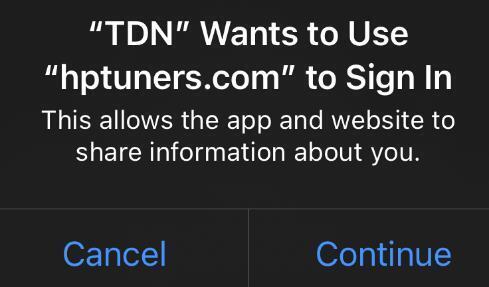
Press Continue when this screen pops up.
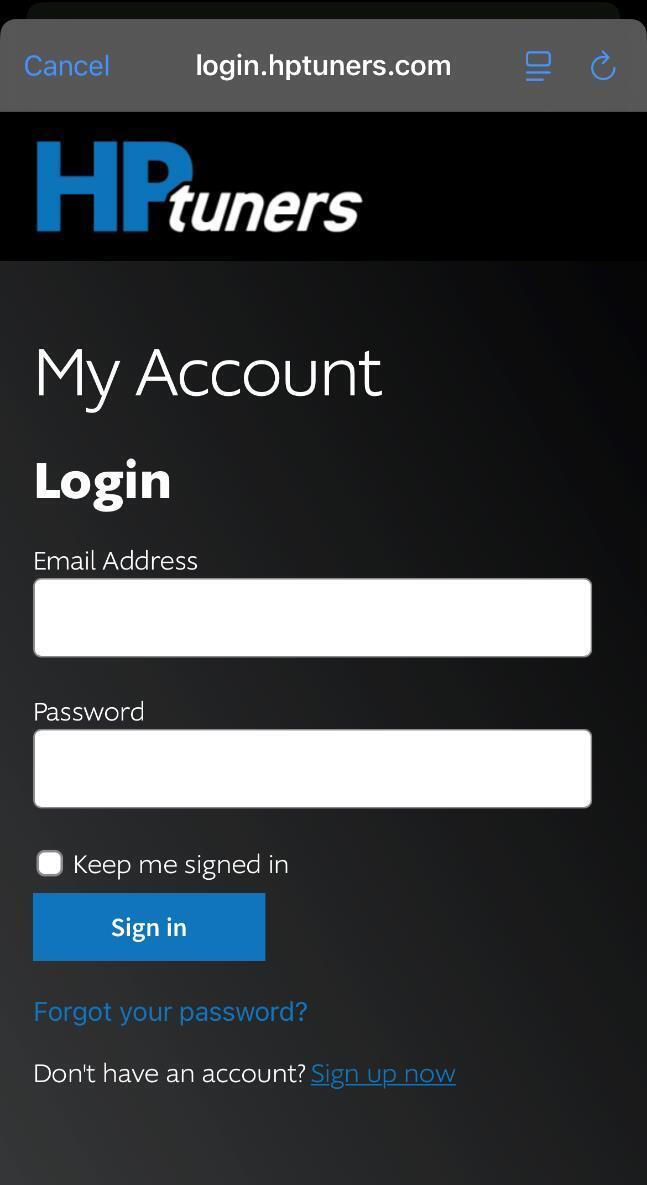
Fill in email address and password for your HPT account.
Press the Keep me signed in check box.
Press the Sign in button.
The app should now return to the Account Page and show your email address and name.
Don’t press the other buttons on this page.
Instead we will now set up the RTD. By doing this your account will automatically connect to Evolution Powersport’s tuning.
Setup RTD4
Before starting it is highly recommended to connect your vehicle battery to a tender. Make sure the voltage is 12volts or higher.
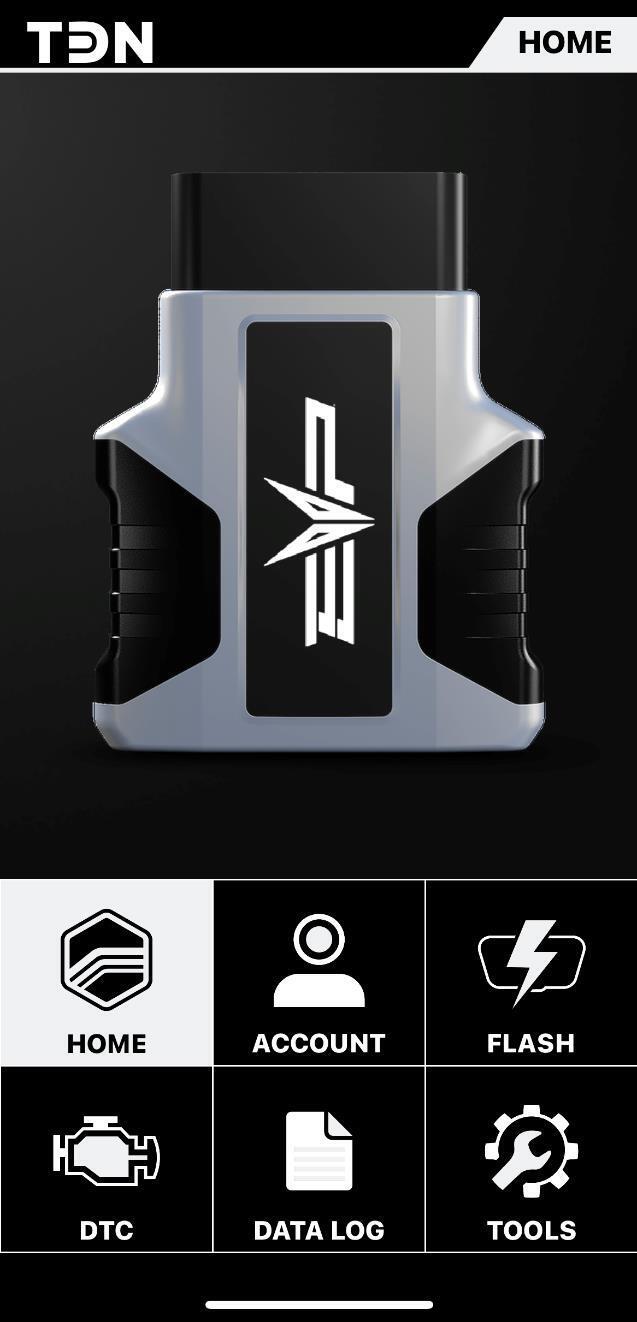
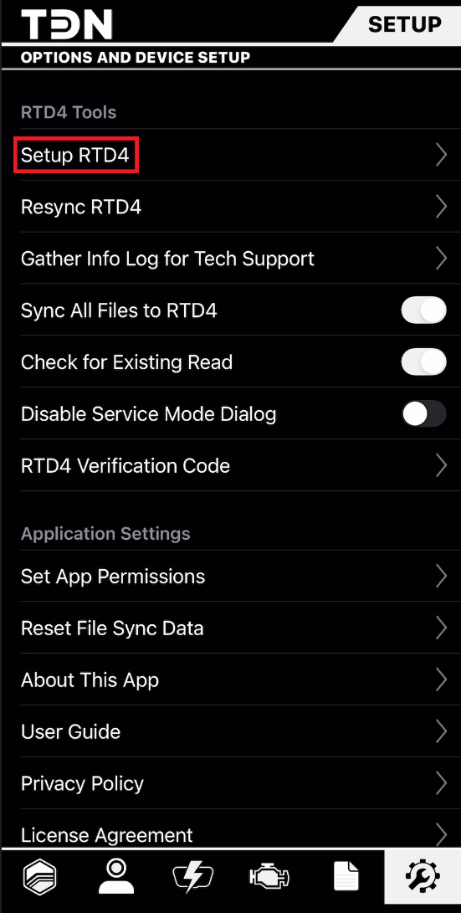
Navigate to the Tools page.
Press Setup RTD4.
Make sure the RTD4 is plugged into the OBD-II port of your vehicle.
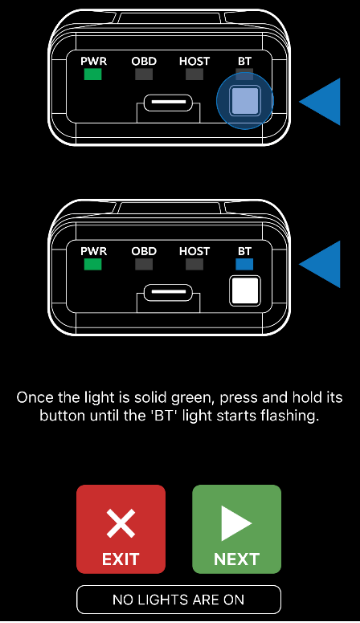
Press NEXT twice to start the Bluetooth pairing operation.
Once on this page press and hold the Bluetooth button on the RTD. This will pair the device with your mobile device.
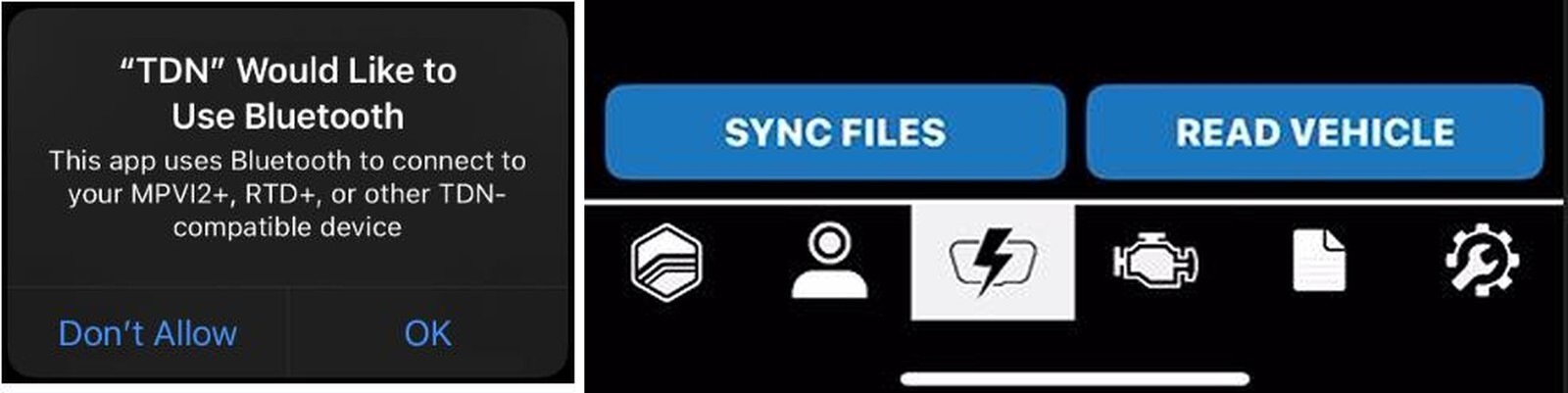
Be sure to allow Bluetooth access when this window pops up.
Allow the mobile device to finish pairing with Bluetooth.
The App will now synchronize the RTD with the HP tuners and link your account with Evolution Powersports. This can take a minute.
Following synchronization, the RTD will likely start a firmware update. This can take several minutes. Do not interrupt this process.
Backup Vehicle
Read and save your vehicles stock tune. This file will always be available to flash on this RTD. This process can take up to 10 minutes to complete it’s recommended to use a battery tender.
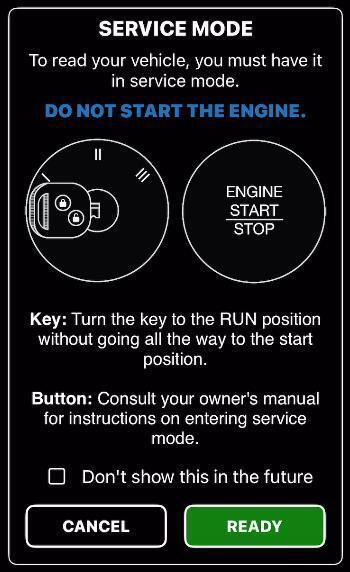
Navigate to the Flash page and press READ VEHICLE.
Be certain to carefully read and follow these instructions.
If any other instructions appear then be sure to follow those as well.
Press READY to begin the backup
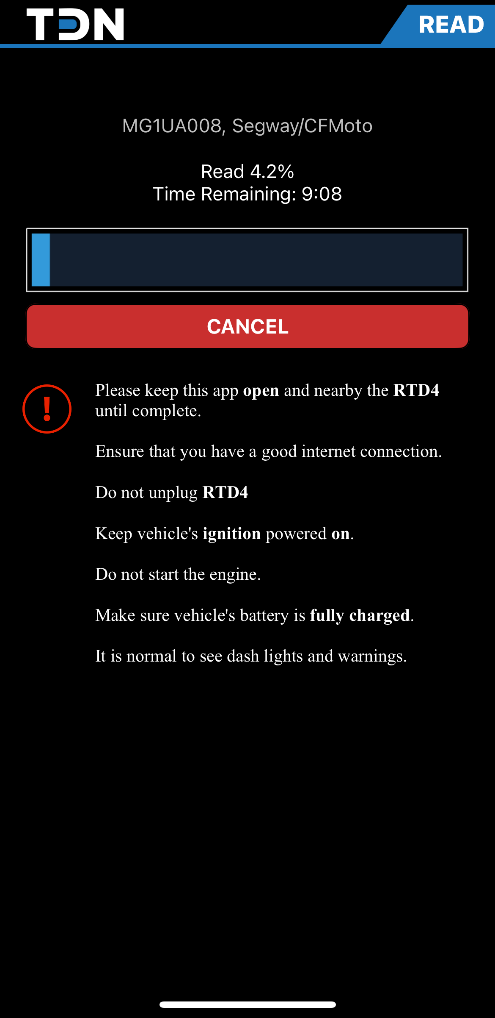
The window on the right will show once the backup process is started, be sure to read and follow the instructions on screen.
You should not have to touch your mobile device for the remainder of the backup process.
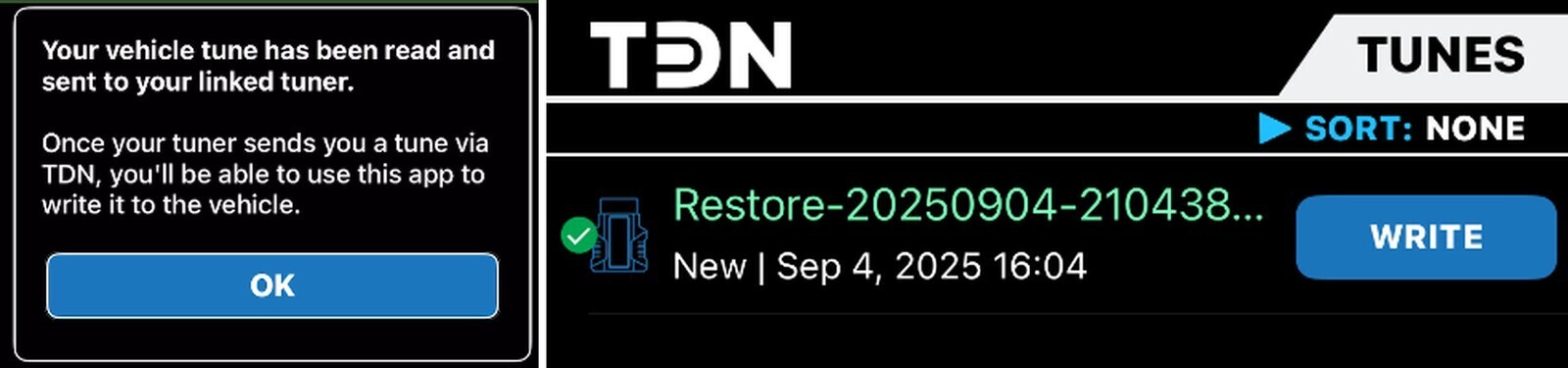
Once this popup window appears the backup process is complete. Press OK and then Complete in the green box.
Flash Vehicle
If you’ve performed the backup process, then there should be a backup file for your vehicle available on the flash page now.
Press the SYNC FILES button at the bottom of the screen to check Evolution Powersports account for existing tunes that may already be uploaded for your vehicle.
If no tunes besides the Backup file are available, then please reach out to Evolution Powersports to have your tune uploaded to your account. You will have to press SYNC FILES again once the files are ready.
Most vehicles will require 2 credits per flash. Please make sure you have enough credits on your account to flash your desired tune. See the next section on how to check your available credits.
Check your tune list, for demonstration we will be writing the backup file to the vehicle.
Press the WRITE button on the tune you want.
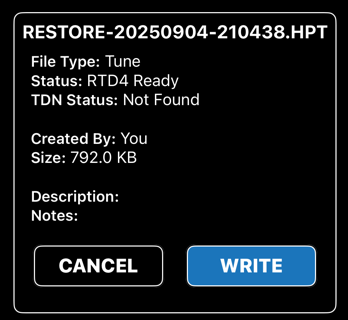
A detailed window will pop up.
Read these details carefully and confirm this is the exact tune you want to flash into your vehicle.
Flashing the incorrect tune can cost you credits and time. Running the vehicle on the incorrect tune can damage your engine.
Press WRITE if you’re confident this is the correct tune.
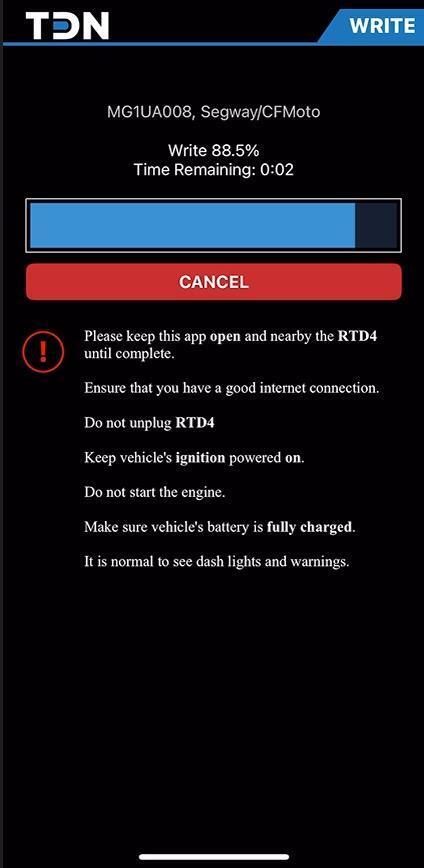
Be certain to carefully read and follow these instructions. If any other instructions appear then be sure to follow those as well. Press READY to begin the flash
The window on the right will show once the flashing process is started, be sure to read and follow the instructions on screen.
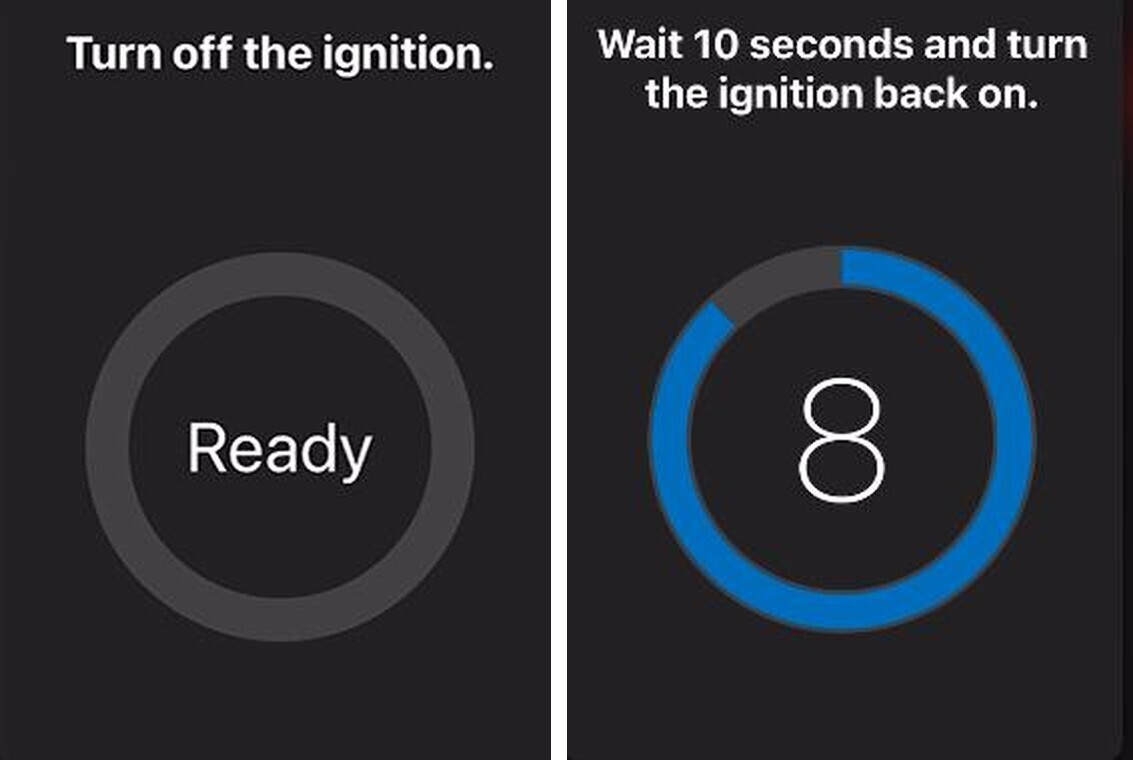
You should not have to touch your mobile device until the screen below is shown.
At this point power down the vehicle.
Once that is done press the Ready button in the center of the circle.
The app will count to 10
Key-on the power to the vehicle again. Don’t start the engine.
Press Done in the center of the circle. Then Complete in the green box.
The engine can be started now to test the new tune. If anything doesn’t seem correct shut-off the engine


Note: This product is exempt from the emission standards and related requirements of 40 C.F.R. § 1051 as providedby 40 C.F.R. § 1051.620, and California law [e.g., vehicle code§§ 27156 and 38391]. This product is sold only for usein connection with EPA certified, purpose-built, nonroad vehicles used solely for closed course, nonroad competition/racing and not used for any recreational purpose or on public highways or right of ways maintained by and open to the public. This product is sold only in connection with machines that do not fall under state and/or federal noise or emission standards/regulations. Purchasers who/that purchase this product represent and warrant that the product is purchased only in connection with EPA -certified, emission-regulations- exempt and noise- regulations-exempt competition/racing vehicles as interpreted under applicable state and/or federal law. Questions: Call Evolution Powersports at (715) 247-3862.